Download and installation
To create a custom voice, you first need to download and install the Garmin Voice Studio program on your computer. Once the program has been downloaded, launch it and follow the instructions below. Make sure your compatible Garmin device is connected to your computer with a USB cable.

Instructions:
1. Once the program is open, you need to give the voice a name and select a language. The name you choose for your voice will be used as the name of your voice file on the device. In this example, the name is "Raido".
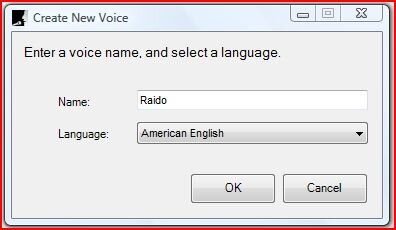
2. Once you have chosen the name and language, you can record various phrases for the voice prompts.
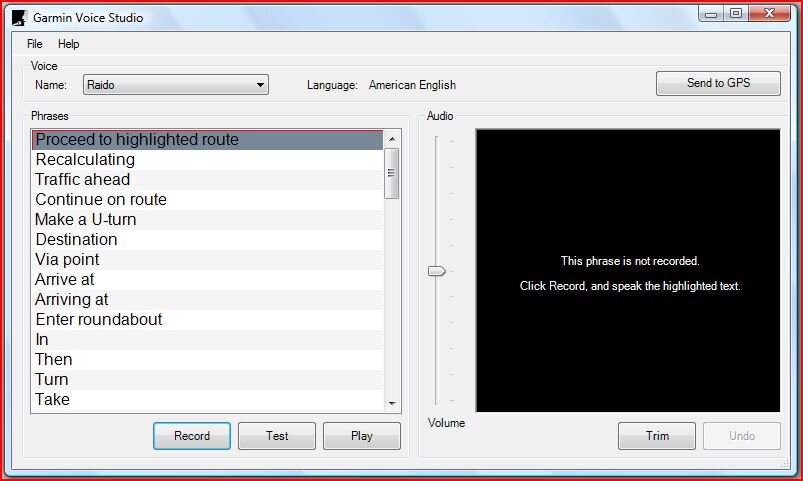
3. Click the Record button and speak into the microphone. When you have finished speaking, click the Stop button.
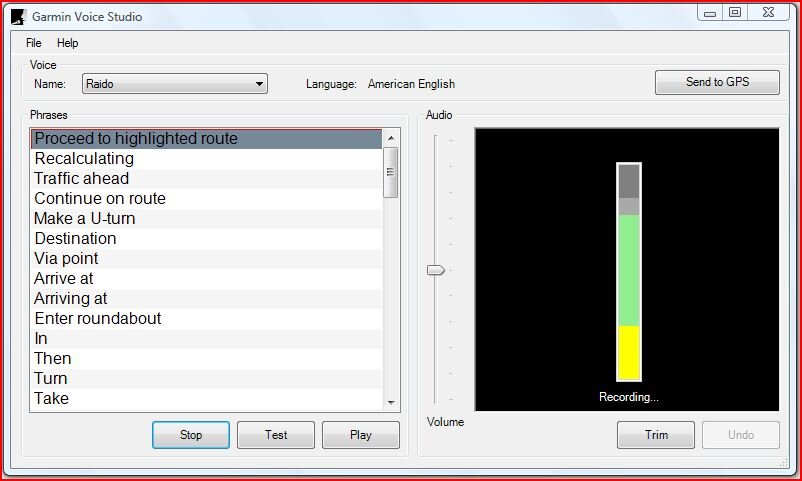
4. After recording, you can listen to and check the phrases. You can also use various tools in the program to adjust the volume.
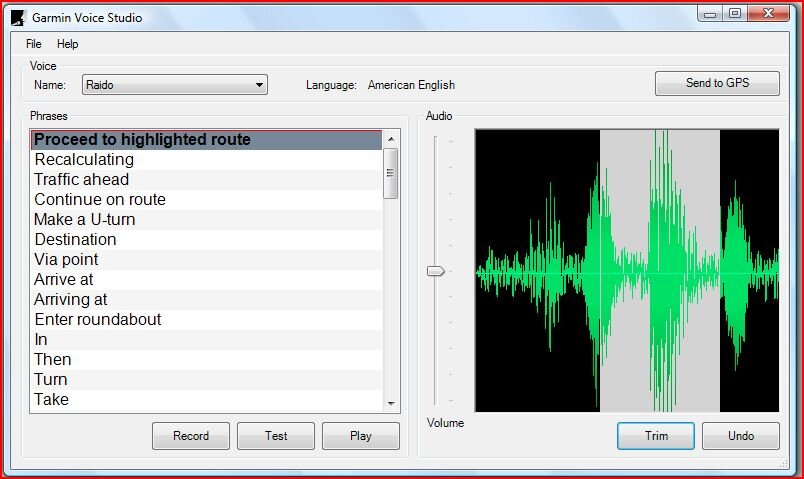
5. Once all phrases have been recorded, you can send them to your device. In the new pop-up window, you can select the device connected to your computer.
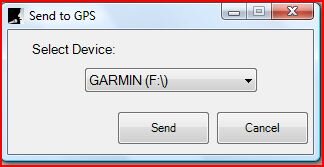
6. Select your GPS device and click the Send button.
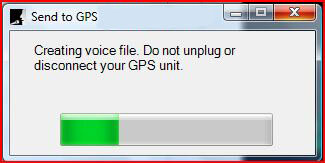
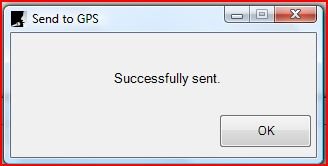
7. The program will show a confirmation message once the voice has been successfully saved to the device.
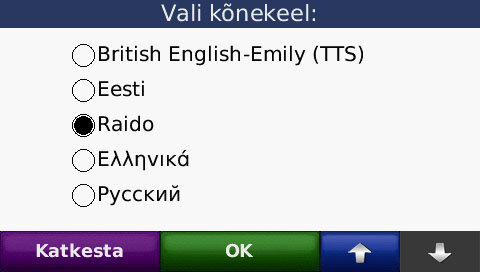
8. To select the voice on your device, go to the Language settings page and select the voice with the corresponding name.